How to Fix “Updating Failed. The response is not a valid JSON response” in WordPress (2026 Working Method)

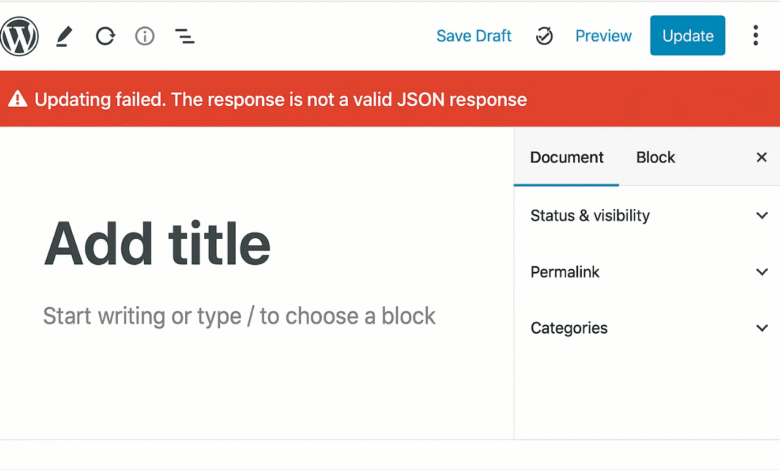
You finish writing a post, hit Update or Publish, and instead of the green success bar you get a red banner:
Your post is not lost. Your site is not broken. This error means the Gutenberg block editor sent a save request to the WordPress REST API, but the server returned something other than valid JSON — usually an HTML error page, a blank response, or a redirect. Something is interrupting the conversation between the editor and your server.
There are eight distinct causes for this error. This guide walks through all of them in order from most common to least common, with a diagnostic step at the top so you can identify your specific cause before trying fixes at random.
Step 0: Diagnose the Cause in 60 Seconds
Before trying any fix, run this test to know exactly what your server is returning. It will tell you which method below applies to your situation.
Test 1 — Check your REST API directly: Open a new browser tab and go to:
https://yoursite.com/wp-json/wp/v2/postsReplace yoursite.com with your actual domain. You should see a page of JSON data (a list of your posts in code format). If instead you see:
- A 404 error page → your permalink structure is broken → go to Fix 1
- A 403 Forbidden page → a security plugin or firewall is blocking the REST API → go to Fix 4 or Fix 5
- A redirect to HTTP when your site is HTTPS → SSL mismatch → go to Fix 2
- A white screen or PHP error → a plugin or theme is outputting text before WordPress loads → go to Fix 7
- Valid JSON but the editor still fails → go to Fix 3 or Fix 6
Test 2 — Check the browser console: On the post editing screen, press F12 (or right-click → Inspect) to open browser developer tools. Click the Network tab. Try to save the post. Look for a red failed request to a URL containing /wp-json/. Click it and check the Response tab — it shows exactly what your server returned instead of JSON. This is the most precise way to identify the cause.
Fix 1: Resave Permalinks (Fixes 90% of Cases)
This is the most common fix and should always be tried first. After a site migration, hosting change, or WordPress update, the rewrite rules that make the REST API URL structure work can get out of sync. Resaving permalinks regenerates them.
- Go to WordPress Dashboard → Settings → Permalinks
- Do not change any setting
- Scroll to the bottom and click Save Changes
- Return to your post and try saving again
This regenerates the .htaccess rewrite rules and clears any stale routing cache. If your REST API test from Step 0 returned a 404, this is almost certainly your fix.
Fix 2: Fix the SSL / HTTP vs HTTPS Mismatch
When your site recently moved from HTTP to HTTPS (by installing an SSL certificate), the Gutenberg editor can end up making REST API calls to the HTTP version of your site while the server redirects everything to HTTPS. This redirect breaks the JSON response.
Check your Site URLs:
- Go to Settings → General
- Check both WordPress Address (URL) and Site Address (URL)
- Both must start with
https://— if either sayshttp://, update it - Click Save Changes
If those fields are greyed out, the URLs are hardcoded in wp-config.php. Open that file via cPanel File Manager or FTP and look for these lines:
define( 'WP_HOME', 'http://yoursite.com' );
define( 'WP_SITEURL', 'http://yoursite.com' );
Change both http:// to https:// and save the file. Clear any caching plugin cache afterwards.
Also check for mixed content: If your site loads over HTTPS but some resources (images, scripts) still load over HTTP, browsers block those requests. Open the browser console (F12 → Console tab) and look for “Mixed Content” warnings. Install the free Really Simple SSL plugin temporarily to force all URLs to HTTPS if you see these.
Fix 3: Regenerate the .htaccess File
A corrupted or misconfigured .htaccess file can prevent the server from correctly routing REST API requests, causing the editor to receive an HTML error page instead of JSON.
- Connect to your server via FTP or open cPanel → File Manager
- Navigate to
public_html(your site root) - Find the file named
.htaccess— if you cannot see it, enable “Show Hidden Files” in File Manager settings - Download a copy to your computer as a backup
- Delete the file from the server
- Go to WordPress Dashboard → Settings → Permalinks and click Save Changes
WordPress will automatically create a fresh .htaccess with the correct rewrite rules. The correct default WordPress .htaccess content should look like this:
# BEGIN WordPress
# The directives (lines) between "BEGIN WordPress" and "END WordPress" are
# dynamically generated, and should only be modified via WordPress filters.
# Any changes to the directives between these markers will be overwritten.
<IfModule mod_rewrite.c>
RewriteEngine On
RewriteRule .* - [E=HTTP_AUTHORIZATION:%{HTTP:Authorization}]
RewriteBase /
RewriteRule ^index\.php$ - [L]
RewriteCond %{REQUEST_FILENAME} !-f
RewriteCond %{REQUEST_FILENAME} !-d
RewriteRule . /index.php [L]
</IfModule>
# END WordPress
If your site is in a subdirectory (e.g. yoursite.com/blog/), the RewriteBase line should match that path: RewriteBase /blog/.
Fix 4: Fix Security Plugin Blocking the REST API
Security plugins like Wordfence, iThemes Security, and Solid Security can block REST API requests if their firewall rules flag them as suspicious. This is especially common after enabling “High Sensitivity” scanning or blocking non-logged-in REST API access.
Quick test: Temporarily deactivate your security plugin, then try saving the post. If it works, the plugin is the cause. Re-activate it and follow the steps below — do not leave your site without security.
Wordfence fix:
- Go to Wordfence → Firewall → All Firewall Options
- Under Whitelisted IP Addresses, add your current IP address
- Alternatively, go to Wordfence → Tools → Diagnostics and check if the REST API is listed as blocked
iThemes Security / Solid Security fix:
- Go to Security → Settings → WordPress Tweaks
- Find the REST API setting
- Change it from “Restrict Access” to “Default Access” or “Allow”
- Save and test
All security plugins — check the logs: Most security plugins have an activity log or blocked requests log. Check it for entries around the time you tried to save the post. The log will show you exactly which rule triggered the block.
Fix 5: Fix Cloudflare Blocking or Rocket Loader
Cloudflare sits between your visitors (and your own browser) and your server. Two Cloudflare features commonly cause this error:
Cloudflare Rocket Loader — this feature rewrites how JavaScript loads on your page. It can interfere with the Gutenberg editor’s REST API calls. To disable it:
- Log into your Cloudflare dashboard
- Select your site
- Go to Speed → Optimization → Content Optimization
- Toggle Rocket Loader to Off
- Clear Cloudflare cache and test
Cloudflare WAF (Web Application Firewall) — if your Cloudflare plan includes the WAF, an overly aggressive rule may be blocking POST requests to /wp-json/. Check:
- Go to Security → Events in Cloudflare
- Look for blocked requests matching your IP address and the URL
/wp-json/wp/v2/posts - If found, create a WAF exception (bypass rule) for requests from your IP address to URLs containing
/wp-json/
Cloudflare caching — if Cloudflare is caching your admin pages (it should not be, but misconfiguration happens), REST API responses may be served stale. Add a Page Rule to bypass cache for yoursite.com/wp-admin/* and yoursite.com/wp-json/*.
Fix 6: Isolate a Plugin or Theme Conflict
Any plugin that outputs content at the wrong time — before WordPress has finished loading — can corrupt the JSON response. The REST API expects the very first byte of the response to be the opening { of a JSON object. Even a single space or blank line before that will make it invalid.
Test process:
- Go to Plugins → Installed Plugins
- Deactivate all plugins at once using the bulk action checkbox
- Try saving the post — if it works, a plugin is the cause
- Re-activate plugins one by one, testing after each one, until the error returns
- The last plugin you activated before the error returned is the culprit
If deactivating all plugins does not fix it, temporarily switch to a default WordPress theme (Twenty Twenty-Five) to rule out a theme conflict. Go to Appearance → Themes and activate a default theme.
Common plugin culprits: caching plugins with aggressive full-page caching on admin URLs, old SEO plugins that hook into the REST API response, and poorly coded plugins that call die() or exit() in a REST API hook.
Fix 7: Fix PHP Output Before Headers (Developer Cause)
This is the most common cause for developers who have recently edited theme files or functions.php. If any PHP file outputs text — even a single blank line — before the WordPress bootstrap completes, the JSON response will be corrupted.
What to look for:
- A blank line or space before the opening
<?phptag infunctions.php,wp-config.php, or any included file - A closing
?>tag at the end of a PHP file followed by a newline — PHP files should never have a closing tag; remove it entirely - A
var_dump(),echo, orprint_r()statement left in active code from debugging - A BOM (byte order mark) character at the start of a file — this can be introduced by certain text editors on Windows; use VS Code or Notepad++ and save files as UTF-8 without BOM
Open your browser console (F12 → Network tab), click the failed save request, and look at the raw Response body. If it starts with any whitespace, HTML, or text before the { character, you have output-before-headers. Trace it back by temporarily adding ob_start(); at the very top of wp-config.php to identify which file is outputting.
Fix 8: Emergency Workaround — Switch to Classic Editor
If you are on a deadline and need to publish right now, this bypasses the error completely. The Classic Editor does not use the REST API to save posts — it uses a traditional form POST instead.
- Go to Plugins → Add New
- Search for Classic Editor (by WordPress Contributors)
- Install and Activate
- Return to your post — it will now open in the Classic Editor
- Save or publish normally
Note: This is a workaround, not a permanent fix. Use it to unblock yourself, then troubleshoot the root cause using the methods above when you have time. The Classic Editor plugin is still actively maintained and safe to use long-term if needed.
Quick Reference: Which Fix to Try First
| Your Situation | Most Likely Fix |
|---|---|
| Error appeared after a site migration or hosting change | Fix 1 — Resave Permalinks |
| Error appeared after adding an SSL certificate | Fix 2 — SSL / URL Mismatch |
| REST API URL returns 404 | Fix 1 or Fix 3 — Permalinks / .htaccess |
| REST API URL returns 403 Forbidden | Fix 4 — Security Plugin |
| Site uses Cloudflare | Fix 5 — Cloudflare Rocket Loader / WAF |
| Error appeared after installing a new plugin | Fix 6 — Plugin Conflict |
| Error appeared after editing functions.php or theme files | Fix 7 — PHP Output / Stray Character |
| Need to publish immediately, troubleshoot later | Fix 8 — Classic Editor Workaround |
Still not fixed?
Need Someone to Fix Your WordPress Site?
If none of the above fixes worked, the cause is likely something specific to your server configuration, hosting environment, or a plugin interaction that needs hands-on diagnosis. I can investigate and fix it remotely. Starting at $10 on Fiverr.
More WordPress Troubleshooting & Development Guides
- How to Create a WordPress Child Theme Without Plugins — edit theme files safely so you never lose changes
- WordPress Speed Optimization: Top 10 Plugins That Actually Work in 2026
- 5 Signs Your Website Was Built by an Amateur — common WordPress mistakes that cause errors like this